8.1.1 Image Transformations
The twelve single-frame operators that every animation in Module 08 will later time-vary. Brightness, channel ops, masks, distance fields — each one a tiny function, ready to wear a clock.
Overview
Animation is, mechanically, a sequence of still images displayed fast enough that the eye reads continuity into the discrete frames — the persistence of vision illusion that has driven moving pictures since Eadweard Muybridge’s 1878 Sallie Gardner at a Gallop [1]. Before you can build an animation, you need a vocabulary of single-frame operators — functions that take an image and return a transformed image. Module 08 then animates by varying the parameters of these operators with respect to time.
This lesson is the toolbox tour. Twelve transformations run on the Python logo: brightness, flipping, channel manipulation, rolling displacement, random noise, quadrant masking, mathematical distance fields, circular masks, and donut masks. Each one is a few lines of NumPy. None of them are animated yet. By the end you’ll have a portable kit of building blocks that the next lesson — easing functions (8.1.2) — will start to time-vary, and by the end of the module you’ll be using these same building blocks for cinematic title scrolls (8.3.1) and fractal zooms (8.4.3).
Learning objectives
- Implement brightness scaling, axis-reversal flipping, and channel zeroing with single-line NumPy slice operations.
- Use
np.rollto shift a channel across the canvas, producing aliasing-like displacement effects. - Build a 2D distance-from-centre field with
np.mgridand use boolean masks to isolate circular and donut regions. - Recognise every transformation as a per-pixel function $f(x, y, t)$ — adding the $t$ in later lessons is what creates animation.
Quick start — twelve operators in a grid
import numpy as np
from PIL import Image

a = np.array(Image.open('python_logo.png').convert('RGB'))

# Brightness — divide every value
Image.fromarray(a // 2).save('dim.png')

# Horizontal flip — reverse the column axis
Image.fromarray(a[:, ::-1]).save('flip.png')

# Drop the green channel
g = a.copy(); g[:, :, 1] = 0
Image.fromarray(g).save('purple.png')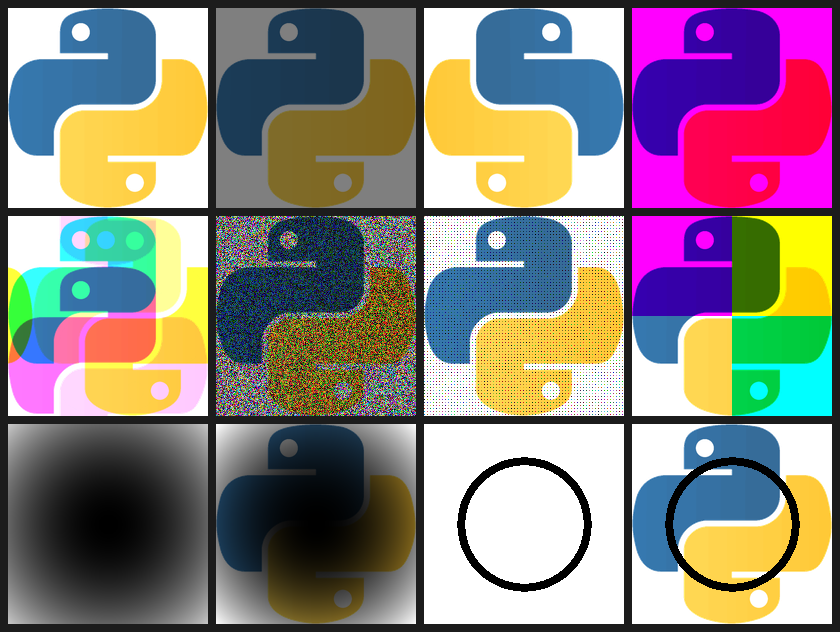
Core concepts
Concept 1 — Channel ops and slice operators
Three of the cheapest, most expressive transformations are pure slicing:
- Brightness —
a // 2halves every value. Multiplication scales each pixel’s intensity uniformly. - Flip —
a[:, ::-1]reverses the column axis.::-1is NumPy’s “every row/column, but in reverse” slice. Free; no allocation, just a view. - Channel kill —
g[:, :, 1] = 0zeroes the green channel in-place. RGB minus green is roughly the magenta-purple range you see in the second tile of the grid above.
These three operators share a property: the operator commutes with broadcasting. You can apply a // 2 to a single image, a batch of images, an animation frame, or a video tensor — the code is identical. That broadcast-friendliness is what makes NumPy operations the natural building blocks of animation.
Concept 2 — Displacement with np.roll
np.roll(arr, k, axis=ax) shifts an array by k positions along an axis, wrapping the displaced elements around to the other end. Rolling a single channel produces a chromatic aberration-style effect:
roll = a.copy()
roll[:, :, 2] = np.roll(roll[:, :, 2], 25, axis=1)   # blue → +25 px right
roll[:, :, 1] = np.roll(roll[:, :, 1], 50, axis=0)   # green → +50 px down
Red stays in place; green and blue shift by different amounts. The same effect, with 25 replaced by int(25 * sin(time)), becomes the canonical “VHS glitch” animation in 8.2.4. The mechanical change between this lesson and that one is one line — 25 becomes int(25 * sin(t)).
Concept 3 — Distance fields and boolean masks
Many of the more dramatic transformations use a distance field: a 2D array where each entry is the (squared) distance from the corresponding pixel to a fixed centre point. Compute it once with np.mgrid:
yy, xx = np.mgrid[:H, :W]
cy, cx = H // 2, W // 2
circle = (xx - cx) ** 2 + (yy - cy) ** 2     # squared distance to centre
np.mgrid[:H, :W] is a one-line way to get two (H, W) arrays of row and column indices. The squared-distance arithmetic is then elementwise — every pixel knows its distance from the centre at the cost of one multiplication and one addition each.
The donut mask uses two thresholds on circle to isolate a thin ring:
donut = np.logical_and(circle < 4500, circle > 3500)
mask = 1 - donut.astype(np.int64)         # 0 inside the ring, 1 outside
# Multiply each channel by mask → ring punched out of the image
Same boolean-mask paradigm you saw with the Mandelbrot iteration (4.1.3); same np.mgrid you saw with the vector fields in 2.2.3. The distance field is the bridge between coordinate-grid maths and pixel-level rendering.
Exercises
Three exercises in Execute → Modify → Create order: run the full transformation pipeline, swap individual operators, then build a vignette from a distance field.
Run the full transformation pipeline
Run transform_logo.py and look at the 10 PNG outputs it produces.
Reflection questions
- The donut mask is computed as
circle < 4500 AND circle > 3500. What thresholds would you change to get a thicker ring? A ring centred at a different radius? - The roll operator wraps pixels around. What does this mean for an animation that rolls the blue channel by
int(t * 100)over time? - Why does
circle // 100produce a visible gradient image, whilecirclealone would look almost entirely white?
Answers
Thicker / different ring — the inner threshold and outer threshold control radius and ring width respectively. To centre the ring at radius $r$ with width $w$, use circle < (r+w/2)² AND circle > (r-w/2)². To thicken, widen the gap. To re-centre, raise both thresholds keeping their gap.
Channel-roll wraparound — at $t = 0$ the channel is in place; as $t$ grows the channel slides across, wrapping around when it falls off the right edge. The animation has natural period $W / 100$ frames. The wrap is visible as a sudden jump unless you also crop or fade the edges.
Visible vs. white — circle ranges roughly 0..$(H/2)² + (W/2)²$ ≈ 0..20000 on a 200×200 logo. Dividing by 100 squashes that range into 0..200, fitting inside uint8’s 0..255 range without saturating most pixels. Without the divide, every pixel except the dead centre saturates white.
Swap individual operators
Edit the script to produce three variants.
Goals
- Yellow logo. Kill the blue channel instead of the green channel — red and green together give yellow.
- Vertical flip. Replace
a[:, ::-1](horizontal flip) witha[::-1](vertical flip). - Bigger noise. Multiply by
noise // 5instead ofnoise // 10— the noise will dominate more strongly.
Goal 1 — what to expect
A yellow Python logo. The two snake heads become yellow; the dark contour stays dark. Yellow = R + G; killing blue removes the original logo’s blue component entirely.
Goal 2 — what to expect
The logo turns upside down. a[::-1] reverses the row axis (the first axis of an (H, W, 3) array), flipping top and bottom. Same idea as a[:, ::-1] but applied to the y-axis instead of the x-axis.
Goal 3 — what to expect
A grainier, darker logo. Each pixel is now scaled by noise / 5 instead of noise / 10. Where noise = 0 the pixel goes black; the average brightness drops to about 90% of the original (with much higher variance). At noise // 1 (no division) the image would be wildly overexposed.
Build a radial vignette
Use the distance-field idea from Concept 3 to write a vignette(image, strength) function that darkens the corners of an image while keeping the centre untouched.
import numpy as np
from PIL import Image

def vignette(image, strength=1.0):
    """Return a new image with brightness fading from full at the centre
    to (1 - strength) at the corners."""
    H, W, _ = image.shape

    # TODO 1: build the squared-distance field with np.mgrid

    # TODO 2: normalise so the centre is 0 and the corners are 1

    # TODO 3: brightness factor = 1 - strength * normalised_distance
    #         (clip to [0, 1] to be safe)

    # TODO 4: multiply each channel by the brightness factor, return a uint8 image
    return image

a = np.array(Image.open('python_logo.png').convert('RGB'))
Image.fromarray(vignette(a, strength=0.85)).save('vignette.png')
Hint 1 — distance field, normalised
yy, xx = np.mgrid[:H, :W]
cy, cx = H // 2, W // 2
dist = np.sqrt((xx - cx) ** 2 + (yy - cy) ** 2)
max_dist = np.sqrt(cx ** 2 + cy ** 2)
norm = dist / max_dist                       # 0 at centre, 1 at corners
For the vignette to look smooth, true sqrt distance reads better than squared — the falloff is closer to linear, matching the optical “soft edge” of a real lens.
Hint 2 — brightness factor and multiplication
brightness = np.clip(1.0 - strength * norm, 0, 1)
out = image.astype(np.float32) * brightness[..., None]   # broadcast over channels
return out.clip(0, 255).astype(np.uint8)
brightness[..., None] adds a trailing axis so it broadcasts across the three colour channels.
Complete solution
import numpy as np
from PIL import Image

def vignette(image, strength=1.0):
    H, W, _ = image.shape
    yy, xx = np.mgrid[:H, :W]
    cy, cx = H // 2, W // 2
    dist = np.sqrt((xx - cx) ** 2 + (yy - cy) ** 2)
    max_dist = np.sqrt(cx ** 2 + cy ** 2)
    norm = dist / max_dist
    brightness = np.clip(1.0 - strength * norm, 0, 1)
    out = image.astype(np.float32) * brightness[..., None]
    return out.clip(0, 255).astype(np.uint8)

a = np.array(Image.open('python_logo.png').convert('RGB'))
Image.fromarray(vignette(a, strength=0.85)).save('vignette.png')
Make it your own
- Pulsing vignette. Wrap the call in a frame loop with
strength = 0.5 + 0.4 * sin(2 * pi * t / period). The vignette breathes in and out — the simplest possible animation of one of these operators. - Off-centre vignette. Replace
(cx, cy)with a moving target. The dark corner follows wherever(cx, cy)is animated to. - Inverted vignette. Subtract 1 from
strength * normso the corners stay bright and the centre dims. Useful as a “spotlight in reverse” effect.
Downloads
transform_logo.py — twelve operators, ten PNGs transform_grid.py — composite 3×4 grid python_logo.png — input imageSummary
Common pitfalls to avoid
- Forgetting
.copy()before mutating.g = a; g[:, :, 1] = 0modifiesain place becausegis just a view. Usea.copy(). - Overflow in
uint8arithmetic.a * aonuint8wraps around at 256. Cast toint64orfloat32before multiplying, then clip and cast back. np.rollwithout anaxisargument. Defaults to flattening the array first; the shift is then per-element across the entire raster, not per-axis. Always specifyaxis=0oraxis=1.- Square-root distances when you only need to compare. Use squared distances for thresholding; reserve
sqrtfor displays where the visual falloff matters.
References
- [1] Muybridge, E. (1887). Animal Locomotion: An Electro-Photographic Investigation of Consecutive Phases of Animal Movements. University of Pennsylvania.
- [2] Born, M., & Wolf, E. (1999). Principles of Optics: Electromagnetic Theory of Propagation, Interference and Diffraction of Light (7th ed.). Cambridge University Press. ISBN 978-0-521-64222-4.
- [3] Gonzalez, R. C., & Woods, R. E. (2018). Digital Image Processing (4th ed.). Pearson. ISBN 978-0-13-335672-4.
- [4] Harris, C. R., Millman, K. J., van der Walt, S. J., et al. (2020). Array programming with NumPy. Nature, 585, 357–362. doi:10.1038/s41586-020-2649-2
- [5] Foley, J. D., van Dam, A., Feiner, S. K., & Hughes, J. F. (1990). Computer Graphics: Principles and Practice (2nd ed.). Addison-Wesley. ISBN 978-0-201-12110-0.
- [6] NumPy Community. (2024). numpy.roll. NumPy Documentation. numpy.org/roll
- [7] Pearson, M. (2011). Generative Art: A Practical Guide Using Processing. Manning. ISBN 978-1-935182-62-5.